I usually have three or four repositories open in one VS Code workspace. Every time I went to commit, I’d scroll the Source Control panel trying to work out which changes belonged to which repo, which branch I was on, and whether I’d actually staged the thing I thought I’d staged. I just wanted those answers sitting together, without the sidebar getting wider than my code.
So I built Better Source Control, a VS Code extension with its own view for every repository in the workspace. The name is a bit cheeky, I know. VS Code’s Git support is perfectly fine. I just had opinions about how a sidebar should be arranged, and apparently that’s enough for me to go build another one.
Each repository gets a row with its branch and Git actions. Expand it for the commit box, staged files and working changes. Pull, push, publishing a branch and stashes all sit on that row, right where I’m already looking.
Keeping the repository in view
Most of the useful details are small. Files get status badges, and modified files show how many lines were added and deleted, with totals for the whole repo. A one-line typo fix and a rewrite of half a file both say “modified”, but the numbers tell me which one deserves a second look. Clicking a file opens its diff, and I can stage or unstage it from the same place. There’s a list and tree toggle too, because sometimes the folder structure explains why five files changed together.
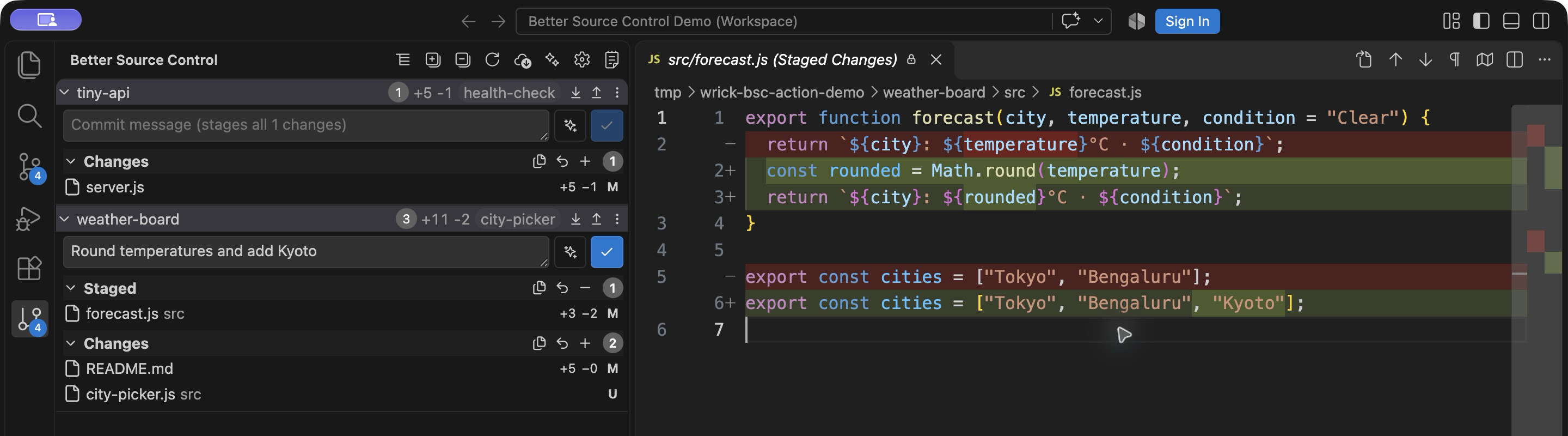
Committing has one behaviour worth knowing about. If there are staged changes, the commit uses those. If nothing is staged, it stages everything and commits. Handy when the whole change belongs together. But if I want separate commits, I need to stage the right files first. I learnt that by shipping a half-finished config tweak inside a bug fix commit. Not my finest moment.
The Git underneath
Underneath, the extension uses VS Code’s built-in Git extension API for repository state and the usual operations, so that extension has to stay enabled. I’m reusing the Git support the editor already has and giving it a different view. Clicking the branch name opens the native branch picker, and there’s an action to create a worktree when I want a second checkout. I didn’t see the point of inventing a new way to switch branches just because I moved the button.
The line counts come from batched Git diffs instead of one Git process per file. New files have no earlier version to compare against, so they take a bit more care, and the extension caps how much it reads. A huge or unreadable file can show incomplete numbers. I’d rather have that than let some enormous generated file freeze the view. The statistics code has the boring details, which, as usual, is where the interesting stuff hides.
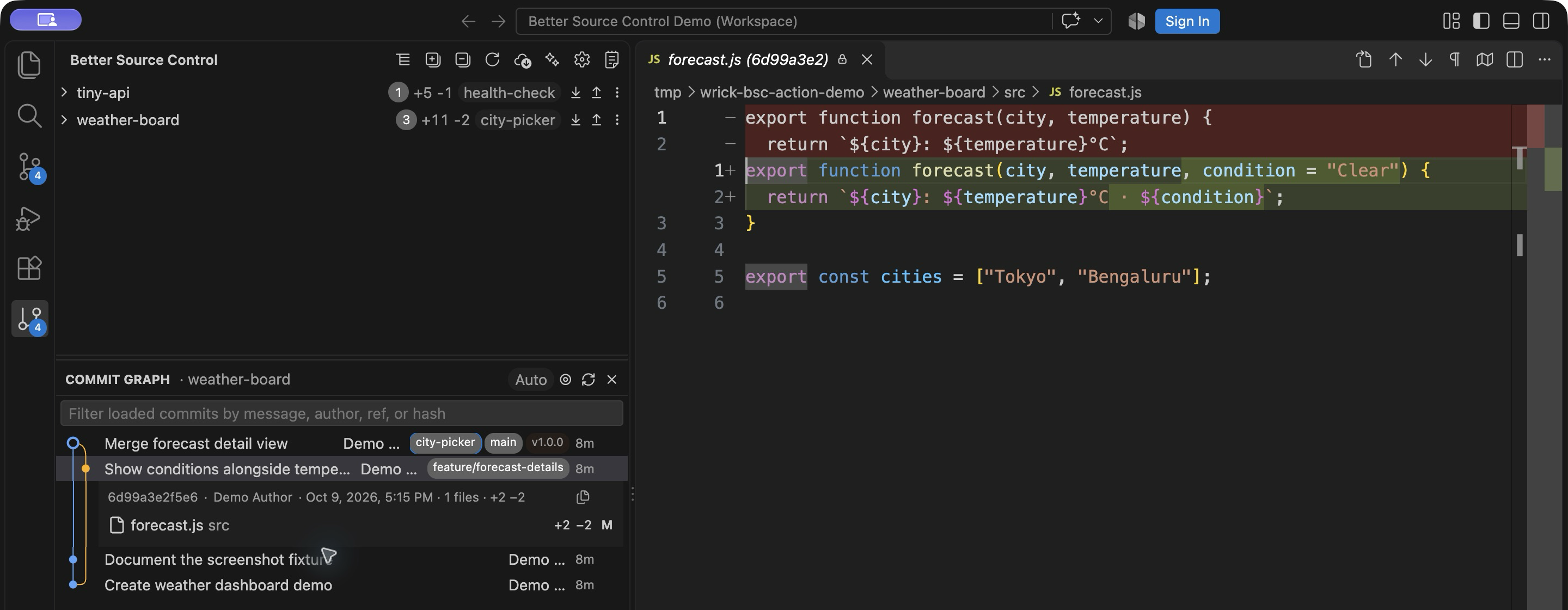
The commit graph gives the repository some history alongside its current changes. It draws commits, branch and tag labels, and the lanes where histories split and merge. Select a commit to see its details and changed files, then open a diff, or filter what’s already loaded. It comes in handy when a file looks weird and the next question is how it got that way.
The boring bits, with help
Commit messages always show up right when I think I’m done. Better Source Control can ask a locally installed, signed-in Codex or Claude Code CLI to draft one from the staged diff, or from the working-tree diff if nothing is staged. The draft lands in the commit box and I edit it before committing. A plausible message is only useful if it describes what I meant to change.
You pick one provider, with separate model and reasoning settings for commit messages and conflict resolution. A local CLI doesn’t mean a local model, though. The CLI sends the diff to whatever service it’s configured for. Untracked filenames go along by default, but not their contents unless you turn that on. Once you stage a new file, its contents are in the staged diff like anything else.
Conflict resolution is the delicate part. The extension can help with marked text conflicts, but binary files and structural or ambiguous conflicts still need a human. Even with plain text, clearing the markers doesn’t mean the two changes make sense together, so I still review the result before continuing the merge or rebase. The README lists what it handles. I want help with the typing, but I still want to understand the code I’m keeping.
Trying it yourself
Install it from the VS Code Marketplace, open it from the Activity Bar, pick a repository and click a changed file to see its diff. Keep the built-in Git extension enabled. You can hide its Source Control icon if you like, just don’t disable the extension itself. The GitHub repository has instructions for running it from source.
All of this started because I wanted a sidebar arranged a little differently. That’s probably enough justification for a hobby project. At least, that’s what I’m going with.
じゃあまたね