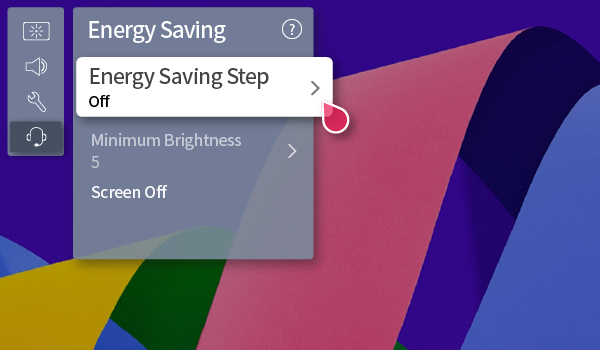
Energy Saving on my LG G5 is one of those settings I change more often than I’d like. Dimmer for a late-night episode, brighter when the afternoon sun hits the screen. Every time, that meant digging through the TV’s menus with the remote while the show sat paused. I already control the TV through Home Assistant, so I wanted that one setting in Apple Home instead. It ended up as a fan slider. Slightly odd thing to have next to a television, but it gives me the five positions I need without building a new app.
Five settings in a fan’s disguise
Those percentages need an explanation before anyone touches the slider. Zero is Off, 25 is Minimum, 50 is Medium, 75 is Maximum and 100 is Auto. They’re positions for the five settings, not measurements of screen brightness. Dragging it to 100% doesn’t make the TV run at full brightness. It asks the TV to manage Energy Saving automatically. The label matters more than the number.
Home Assistant’s HomeKit Bridge exposes a template fan to Apple Home, using four speed steps plus Off for the five choices. The fan maps each percentage to a dropdown helper, and an automation watches that helper and sends the matching command through the LG webOS integration. The dropdown remembers the last request across restarts, as long as it has no initial value. I found that out the annoying way, with an initial value resetting my choice on every startup, exactly like the documentation says it will.
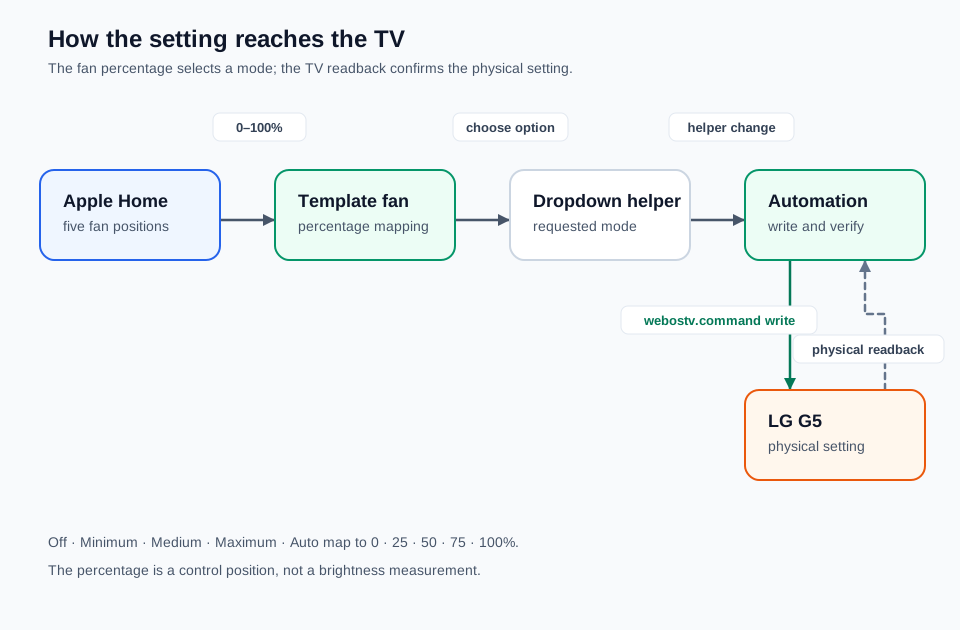
The percentage is a request. A separate read from the TV tells Home Assistant what actually happened.
Getting the TV to listen was the hard part. On Home Assistant Core 2026.1.3, a direct settings command just failed on the G5. What works is using webostv.command to create an alert with a webOS settings callback, then closing the alert. Strange route, and I wouldn’t assume another LG model or firmware accepts it. My webOS connectivity override on GitHub pins the client version I tested, but the automation also needs a separate local patch, so the override alone isn’t the whole setup.
Ask the TV, not the slider
Here’s the trap with putting any device setting behind a smart-home slider. Apple Home shows the new position as soon as Home Assistant updates the helper, and that says nothing about whether the TV applied it. So the automation asks the TV what actually happened. It reads energySaving first and stops if the value already matches. Otherwise it sends the command and reads the value again. It gets two verified attempts. If it still can’t confirm, the slider keeps the requested position and Home Assistant posts a persistent notification. An honest failure beats a cheerful slider lying to me.
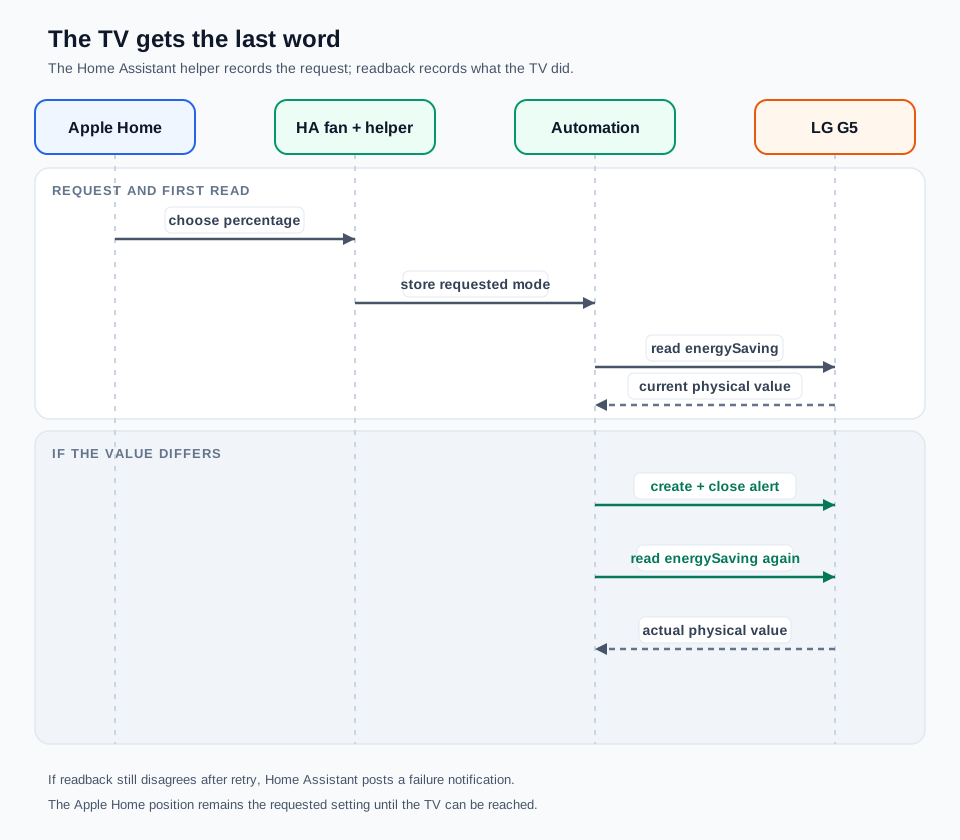
The second read is the important one. It checks the TV, not the slider.
One test showed exactly why. The helper said Medium while the TV was physically on Minimum. Picking Medium again didn’t change the helper, so there was nothing for a state-change automation to react to, and a minute later the TV was still on Minimum. Now there’s a one-minute check while the TV is on, plus checks when the TV comes back online and when Home Assistant starts. I tested outages by blocking Home Assistant’s connection to the TV, and requests made during them applied once it reconnected. Rapidly flipping between positions ended with the last one winning and the readback matching.
The TV’s network address caused a separate problem. Home Assistant kept trying the old address after the TV moved. That’s the local patch. It listens for the TV’s SSDP announcement, matches the same device and updates the stored address without losing the pairing key. It’s tied to a pinned version of the custom webOS component, though, so I have to recheck it after every update.
Trying it yourself
Start with an LG TV paired through Home Assistant’s LG webOS integration and a working HomeKit Bridge. Check that the TV’s settings/getSystemSettings command returns an energySaving value first. If it can’t read the setting, a slider just gives you a nicer way to guess. Then you need a five-option dropdown with no initial value, a template fan mapping the five settings to 0, 25, 50, 75 and 100 percent, and an automation that reads, writes and verifies. Back up any existing automation before changing it. The public GitHub override has the pinned connectivity component, but the full automation and the address patch aren’t published there. I’ve only tested the G5 on Core 2026.1.3.
Try each setting and read the TV back after every change, then test a reconnection and a restart. A slider that only works while every connection behaves is very easy to build by accident. And a failure notification means the request is still waiting, not that the TV changed.
I wanted a quick control in an app I already use. The readback is what made it worth keeping. The fan is still a weird disguise for a TV setting, but at least now it tells me when the TV and the slider disagree.
じゃあまたね